
Aethersx2 controller
settings, support and mapping guide
If you’ve just downloaded AetherSX2 and want to connect your gamepad, this guide will walk you through everything you need to know, from pairing your controller to fixing common issues.
Whether you’re using a PS4, PS5, or Xbox controller, you’ll learn exactly how to set it up and start playing your favorite PS2 games with proper controls.
What Is AetherSX2?
AetherSX2 is a PlayStation 2 emulator designed specifically for Android devices that allows you to play classic PS2 games on your phone or tablet by emulating the original console’s hardware.
AetherSX2 includes touchscreen controls that appear as virtual buttons on your screen but most players prefer using a physical controller. This gives you the authentic console experience with better precision and comfort during longer gaming sessions.
Aethersx2 controller support
AetherSX2 has excellent controller support built right in. The emulator works with most modern gamepads, including PlayStation and Xbox controllers.
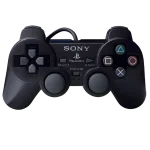
PlayStation Controllers
The DualShock 4 controller from PlayStation 4 and the DualSense controller with button layout as the original PS2 controller from PlayStation 5 both work seamlessly with Android devices. Both support Bluetooth wireless connectivity and can also be used with USB cables.
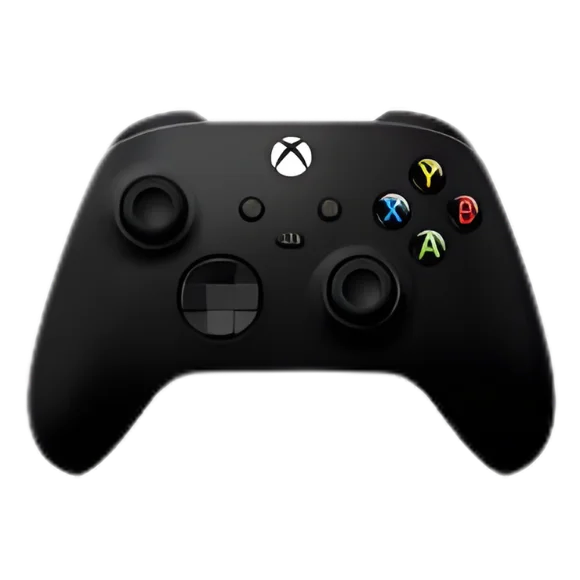
Xbox Controllers
The Xbox One controller and the newer Xbox Series X/S controller including bluetooth support for wireless play both function perfectly with AetherSX2. The offset analog stick design and ergonomic grip make Xbox controllers comfortable for extended gaming sessions.
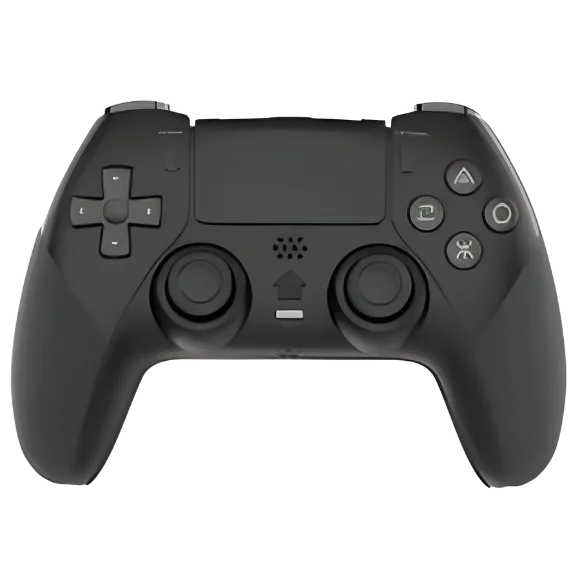
Generic Bluetooth and USB Gamepads
Many third-party controllers designed for Android, PC, or mobile gaming will function properly with the emulator. Budget-friendly options from brands like 8BitDo, Razer Kishi, and GameSir are popular among emulation enthusiasts.
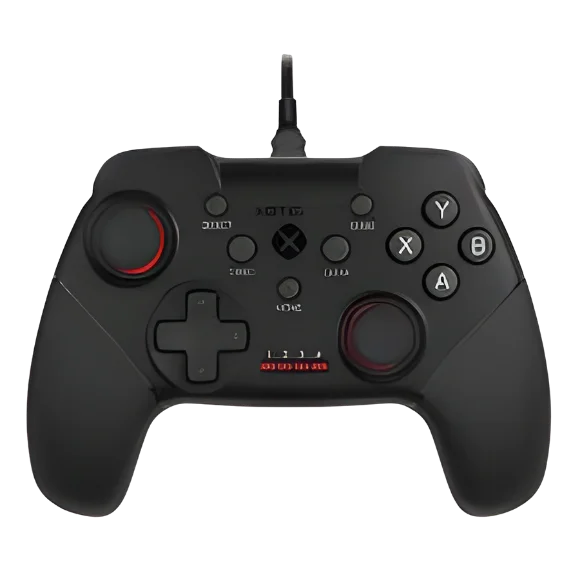
Wired Controllers
If you have an old PlayStation 3 controller, PC gamepad, or fighting game arcade stick, there’s a good chance it will work when connected via USB. The advantage of wired controllers is consistent connectivity without worrying about battery life or Bluetooth pairing issues.
Mobile Gaming Controllers
Backbone One, Razer Kishi, or GameSir X2 are designed specifically for smartphone gaming. These clip-on controllers turn your phone into a handheld gaming device similar to a Nintendo Switch. They connect via your phone’s USB-C port and typically offer excellent compatibility with AetherSX2 since they’re built specifically for Android gaming.
aethersx2 controller setup
Setting up your controller with AetherSX2 is straightforward once you know the basic process. The exact steps depend on whether you’re connecting wirelessly or with a cable, but both methods are easy to follow.
Wireless Controller settings
Put your controller into pairing mode
For most controllers, this means holding down specific buttons until a light starts flashing. On PlayStation controllers, you typically hold the PlayStation button and the Share button together for a few seconds. On Xbox controllers, press and hold the pairing button on top of the controller until the Xbox logo starts flashing.
Settings app on your Android device
Navigate to Connected Devices or Bluetooth settings, depending on your Android version. Make sure Bluetooth is turned on, then tap “Pair new device” or a similar option. Your controller should appear in the list of available devices within a few seconds.
controller Pairing
You’ll see a confirmation message when the connection is successful, and the light on your controller should stop flashing and remain solid. Your Android device will remember this controller, so you won’t need to repeat this pairing process every time.
Open AetherSX2
The emulator should automatically detect your connected controller. You can verify this by going into the emulator’s settings and checking the controller configuration section. If your gamepad is recognized, you’ll see it listed there with the controller name or type.
controller testing
The buttons should work immediately with the default mapping. If they don’t respond, you may need to check the controller settings within AetherSX2, which we’ll cover in detail later.
USB or Wired Controller setup
USB adapter plugin
Simply plug the USB adapter into your phone’s charging port, then connect your controller’s USB cable to the adapter. Your Android device should recognize the controller instantly. You might see a notification indicating that a USB device has been connected.
Open AetherSX2 Apk
Launch the AetherSX2 apk and the emulator will detect your wired controller automatically. Wired connections are often more reliable than Bluetooth, especially if you’re experiencing input lag or connection drops with wireless controllers. The trade-off is that you’ll have a cable running from your controller to your phone, which can be less convenient.
Test the controller in a game.
Some players prefer keeping their controller plugged in during gameplay to avoid battery drain, even if the controller supports Bluetooth. This also eliminates any potential wireless interference that might affect your gaming experience.
aethersx2 controller mapping
Even though AetherSX2 comes with default button layouts, you might want to customize your controls to match your preferences or fix any buttons that don’t feel right. The emulator makes this process accessible through its settings menu.
You can map not just the standard buttons but also the analog sticks and triggers. This is particularly useful if your controller doesn’t automatically map these correctly. Make sure to test the directional controls and shoulder buttons, as these sometimes need manual adjustment depending on your gamepad model.
Two Controllers in AetherSX2 (Multiplayer)
Many PlayStation 2 games support local multiplayer where two players can play on the same device. AetherSX2 handles this by allowing you to connect and configure multiple controllers simultaneously.
If one controller isn’t responding in multiplayer mode, check that it’s assigned to the correct port. Some games require specific port assignments, and switching which port each controller uses can resolve issues. Also verify that the game itself supports multiplayer, as not all PS2 games have local two-player modes.
Use of PS4 Controller with AetherSX2
To connect your PS4 controller via Bluetooth:
If you prefer a wired connection:
The PS4 controller’s touchpad won’t be used in most PS2 games, but the rest of the controls function perfectly.
PS5 Controller with Aethersx2
Pairing the PS5 controller and wired connections usage follows a similar process to the PS4 version.
The DualSense maps perfectly to AetherSX2’s default controls. All buttons, triggers, and analog sticks work immediately without configuration. The adaptive triggers and haptic feedback features of the DualSense won’t function in PS2 emulation since these are modern features not present in the original console, but the controller still provides excellent responsiveness and comfort.
Xbox controller with AetherSX2
For bluetooth connection:
Wired connection:
If you have an older Xbox controller without Bluetooth, you can still use it with a USB cable. Connect it to your Android device using a USB-C adapter and the controller’s micro-USB cable. This wired method works reliably and keeps the controller powered without draining batteries.
Best Controller Settings for Smooth Gameplay
Getting the most responsive and comfortable controller experience in AetherSX2 involves more than just connecting your gamepad. There are several settings you can adjust to improve performance and feel.
- In the AetherSX2 controller settings, look for an option related to input latency or controller polling rate.
- Setting this to the highest polling rate available can reduce input lag, making your controls feel more responsive particularly in titles that require precise timing . This is particularly noticeable in action games or titles that require precise timing.
- Make sure the emulator’s frame limiting and vsync settings are configured properly.
- Go to the Graphics or Display settings in AetherSX2 and verify that frame limiting is enabled to prevent excessive speed.
- If you’re experiencing stuttering or inconsistent controller response, adjusting the frame pacing options can help.
- Analog stick sensitivity can be modified if you find the default settings too sensitive or not responsive enough.
- In the controller configuration menu, you may find deadzone settings for the analog sticks.
- The deadzone determines how much you need to move the stick before the emulator registers input.
- Lowering the deadzone makes controls more sensitive, while increasing it can help if your controller has stick drift issues.
- For racing games or titles that heavily use the analog sticks, verify that the sticks are properly calibrated.
- Some controllers may require you to move the analog sticks through their full range of motion during initial setup to ensure proper detection of movement in all directions.
Vibration feedback settings can be found in the controller or game settings menu. While not all PS2 games support vibration, enabling it in the emulator allows compatible games to provide force feedback through your controller if it has rumble motors. This adds to the immersion but can drain battery faster on wireless controllers.
Common Troubleshoot
Controller Not connecting
If your controller won’t connect via Bluetooth, first make sure it’s fully charged. Low battery can prevent proper pairing. Try unpairing the controller from your Android device completely, then restart both your phone and the controller before attempting to pair again. Sometimes old connection data can cause conflicts.
aethersx2 controller delay
If you experience significant input lag where there’s a noticeable delay between pressing a button and seeing the action on screen, try switching from Bluetooth to a wired USB connection. Bluetooth lag is sometimes caused by interference from other wireless devices or distance from your phone. Moving closer to your device or turning off other Bluetooth devices can help.
Aethersx2 controller not detected
If AetherSX2 doesn’t detect your controller at all, verify that other apps can use it. Try a controller testing app from the Google Play Store to confirm your gamepad is working properly with Android. If it doesn’t work in other apps either, the problem is with the controller or your device’s Bluetooth functionality rather than AetherSX2.