
AetherSX2 Fast Forward: Button, Hotkey, Speed Settings, and Stuck Fix
AetherSX2 is one of the most capable PS2 emulators available on Android, bringing full PlayStation 2 emulation to your phone or tablet. One of its most useful features is fast forward, a tool that removes the emulator’s frame-rate limit and lets the emulation run as fast as your device’s hardware allows.
This guide covers everything you need to know: where the button is, how to map it to a hotkey, why it sometimes stops working, how to unstick it when it gets locked on, and how to tune the speed settings for your specific device.
What Is the Fast Forward Feature in AetherSX2?
Fast forward in AetherSX2 is a frame-rate limiter toggle. Under normal operation, the emulator caps emulation speed to match the original PS2 hardware, 60 FPS for NTSC games and 50 FPS for PAL titles. When you activate fast forward, that cap is lifted, and the emulator runs the PS2’s Emotion Engine (EE) CPU and Vector Units (VU) as fast as your device can physically compute them.
How to enable and disable Fast forward?
The fast forward button is not visible by default. Unlike the face buttons and D-pad, it must be manually enabled in the touchscreen controller layout. Fast forward operates in two distinct modes, and confusing them is the source of most user problems.
Hold Mode: Fast forward is only active while you hold the button down. The moment you release, speed returns to normal.
Toggle Mode (default): One tap activates fast forward. A second tap deactivates it. The button acts like an on/off switch.

In game Touch screen Enabling
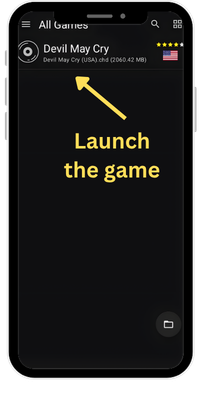
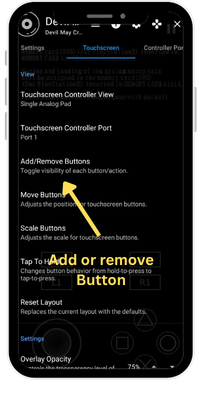
- Launch any game so the touchscreen overlay is visible.
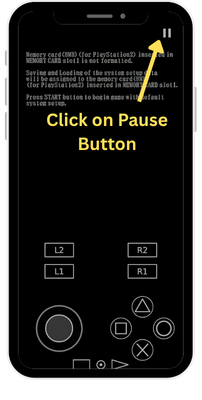
- Tap the Pause button or press the system Back button to open the in-game pause menu.
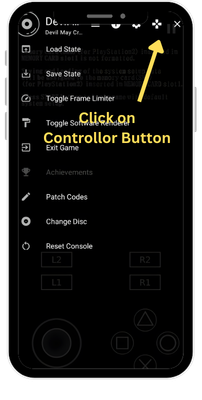
- In the top-right corner of the pause menu, tap the controller icon (Controls tab).
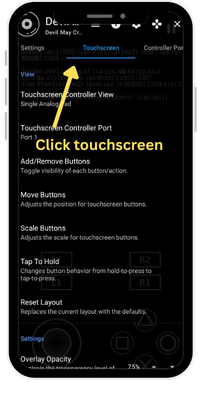
- Select the Touchscreen tab.
- Tap “Add/Remove Buttons.”
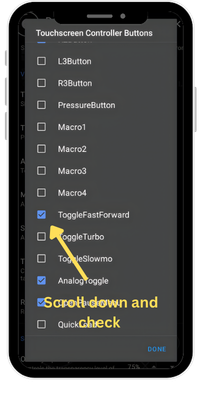
- Scroll through the list until you find Fast Forward and enable it.
- The button will now appear on your touchscreen overlay during gameplay. You can drag it to any position you prefer.
- Once added, the fast forward button looks like a double right-pointing arrow (⏩).
Accessing Fast Forward Through the Quick Menu
If you do not want a permanent on-screen button, you can also toggle fast forward from the in-game pause menu directly. While playing, press Back or Pause, and look for the Speed or Fast Forward toggle option in the Quick Menu. This method is slower to access but useful if you only occasionally need the feature and want a cleaner overlay.


Using Volume Buttons as a Fast Forward Trigger
AetherSX2 also supports macro buttons that can be triggered by physical phone buttons, including the volume keys. If you play without a Bluetooth controller and want a physical button for fast forward, this workaround is effective:
- In Controller Settings, scroll down to the Macro section under Port 1.
- Tap one of the four macro slots (M1 through M4).
- Set the Trigger to “Volume Up” or “Volume Down.”
- Leave the button combination field empty (since you are not automating in-game buttons — you want this to fire the fast forward hotkey).
Setting UP Fast Forward Hotkey in AetherSX2
Mapping Fast Forward to a Bluetooth or Physical Controller Button
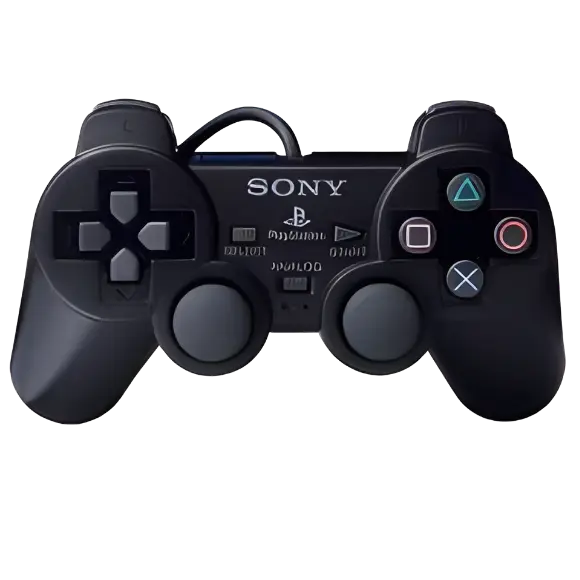
Using a Bluetooth controller is the most reliable way to handle fast forward because physical buttons do not suffer from touch-input ghost presses. One of the most popular button combinations used by the AetherSX2 community is L3 + R2, recommended in Controller setup guides for both AetherSX2 and its successor NetherSX2.
To assign this hotkey:
- While in-game, open the pause menu.
- Tap the controller icon in the top-right.
- Swipe to the Hotkeys tab (this is separate from the main controller bindings).
- Find “Fast Forward Toggle” in the list.
- Tap it and press the button combination you want — for example, L3 + R2.
- Tap Back to save.
This hotkey will now activate fast forward during gameplay without touching the screen. Using a combination (like L3 + another button) prevents accidental activation during normal play.
Keyboard Shortcuts (For Desktop/PC Users Running PCSX2/AetherSX2 Builds)
If you are running a PC build of the PCSX2 engine (which shares its codebase with AetherSX2), the default fast forward key is the Tab key. Holding or tapping Tab activates turbo mode. This can be remapped in Settings → Controllers → Hotkeys → Turbo / Fast Forward Toggle.
When to Use Fast Forward
Fast forward does not behave identically across all PS2 games. Understanding which games handle it well, and which do not, saves significant frustration.
Games Where Fast Forward Works Excellently
Turn-based RPGs like Final Fantasy X, Dragon Quest VIII, and Persona 3 are ideal candidates for fast forward. Their gameplay logic is not tied to real-time frame pacing, so speeding up the emulation simply makes menus, transitions, and animations play faster without any side effects. Random encounter grinding that would take 10 hours of real time can be reduced to 4–5 hours.
Loading-screen-heavy games like early GTA titles (GTA San Andreas, Vice City) also benefit significantly. Fast forward blows through loading screens without affecting the game’s internal logic once the level has loaded.
Games Where Fast Forward Causes Issues
Racing games with physics engines tied to frame count , including the Need for Speed series and Gran Turismo 4 — can behave erratically at high fast forward speeds. Car handling, collision detection, and AI pathing can all degrade at 3x+ speed. Use fast forward only during menus and loading screens in these titles, then disable it during actual races.
Cutscene-heavy games with event triggers (Metal Gear Solid 2, Final Fantasy XII) sometimes fail to register story triggers correctly when fast-forwarded through specific moments. If a cutscene abruptly ends early or a boss fight does not start when expected, try replaying the preceding section at normal speed.
AetherSX2 Fast Forward Speed Settings
The fast forward speed cap is located in: Settings (hamburger menu top-left) → System → Speed Control (sometimes labeled as “Turbo Speed” or “Fast Forward Speed Limit” depending on the version).
The default maximum for fast forward is 200% (2x normal speed). This means that even if your device could theoretically run the game at 4x speed, fast forward will cap out at 2x.
Available Speed Tiers In Fast Forward
|
Setting |
What It Does |
Best For |
|
100% |
No fast forward effect — this is normal speed |
Disabled state |
|
150% |
Mild speedup, reduces audio desync risk |
Weaker devices |
|
200% (default) |
Standard 2x speed |
Most mid-range phones |
|
300–400% |
Aggressive speedup, noticeable audio pitch shift |
High-end devices only |
|
Unlimited |
No cap — runs as fast as hardware allows |
Snapdragon 888+ devices |
Difference Between Aethersx2 Fast Forward and Other Speed techniques
|
Feature |
Fast Forward |
Speed Hacks |
Frame Skip |
|
Primary Function |
Removes frame-rate cap to run the game faster |
Alters emulation processing to improve performance |
Skips rendered frames to reduce GPU load |
|
Effect on Speed |
Increases actual game speed beyond 100% |
Helps reach normal (100%) speed |
Does not increase actual game speed |
|
How It Works |
Speeds up CPU, GPU, audio, and game logic uniformly |
Modifies PS2 hardware emulation (cycle skipping, parallel execution, etc.) |
Renders fewer frames (e.g., every 2nd or 3rd frame) |
|
Accuracy |
High (game behaves correctly, just faster) |
Reduced (trades accuracy for performance) |
Medium (game logic intact, visuals reduced) |
|
Visual Impact |
Smooth, just faster |
May cause glitches or bugs |
Choppy or less smooth visuals |
|
Audio Impact |
Speeds up along with gameplay |
May cause audio distortion/issues |
Usually unaffected but may feel desynced |
|
Best Use Case |
Playing games faster after reaching stable performance |
Achieving stable 60 FPS on weaker hardware |
Reducing rendering load when GPU is struggling |
|
Limitations |
Depends entirely on hardware power |
Can introduce graphical/audio/game-breaking issues |
Does not fix low FPS, only hides it visually |
|
Relationship to Performance |
Works after reaching full speed |
Required to reach full speed |
Only reduces visual workload |
|
Recommended Usage |
Yes, once game runs at 100% |
Yes, but carefully tuned |
Generally not recommended for regular use |
|
Common Misconception |
Thought to improve FPS (it doesn’t) |
Thought to “speed up” games beyond 100% |
Thought to increase performance (it doesn’t truly) |
Common trouble troubleshooting
AetherSX2 Fast Forward Not Working
Fast forward “not working” actually describes three different failure scenarios, and they have different causes and fixes.

Fast Forward Has No Visible Effect on Speed

Fast Forward Button Is Greyed Out or Does Not Respond to Taps

Fast Forward Works in Menus but Not During Gameplay
Some games have internal speed locks tied to their logic engines. During gameplay, certain timing-critical processes lock the EE cycle rate regardless of the frame limiter. This appears as fast forward working on the PS2 boot logo or in menu screens, but reverting to normal speed once gameplay begins.
Fixes:
AetherSX2 Fast Forward Stuck
The most common cause is a missed tap. In Toggle Mode, one tap activates and one tap deactivates. If your second tap registers as a “no touch” (due to an unresponsive screen area, a screen protector, or a slight finger miss), fast forward stays on. This is compounded by the fact that at 2x speed, the window of time in which you can tap again feels compressed.
A second cause is a ghost press from a physical controller. If your Bluetooth controller has a sticky or malfunctioning button that matches the fast forward hotkey, it can send a rapid on-off-on sequence, with the final state being “on” with no further input coming.
Fixing a Stuck Fast Forward Mid-Game
Final Notes
Fast forward is a powerful feature, identically beneficial for both Aethersx2 and Its successor Nethersx2, when configured correctly, transforms long gaming sessions. The most important things to remember are: it requires hardware headroom to have any effect, Toggle Mode is the source of most “stuck” complaints (switch to Hold Mode if this bothers you), and the default 200% speed cap can be raised in System → Speed Control if your device is powerful enough.