
Aethersx2 appimage for linux
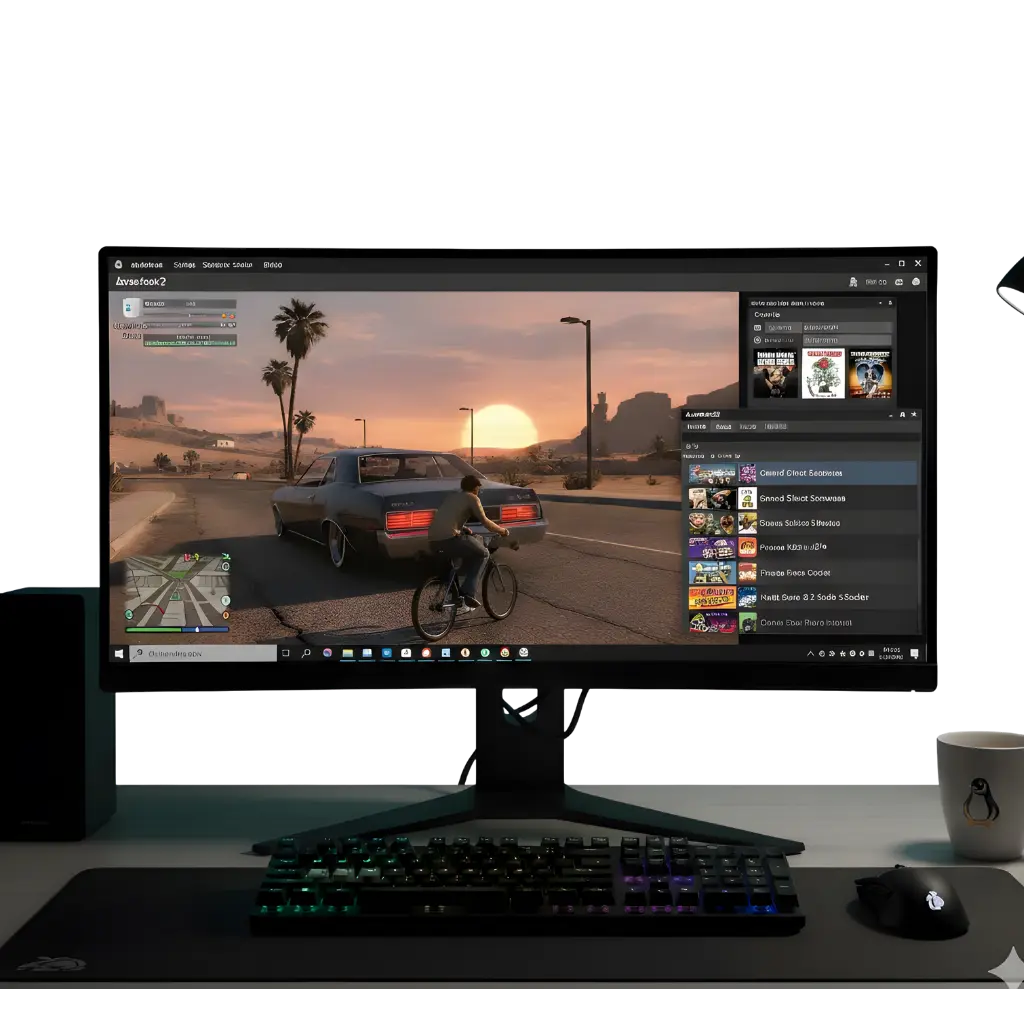
|
Item |
Details |
|
File Name |
AetherSX2 Linux AppImage |
|
File Type |
AppImage |
|
File size |
31 MB |
|
Architecture |
ARM64 (AArch64) only |
|
Supported CPUs |
ARM-based processors (Raspberry Pi, Orange Pi, ARM laptops) |
|
Operating System |
Linux |
|
Minimum OS Version |
Ubuntu 20.04 or equivalent |
|
Recommended OS |
Ubuntu 23.10 (ARM64) |
|
Run Method |
Make executable and run directly |
|
Emulator Type |
Sony PlayStation 2 (PS2) Emulator |
What is AetherSX2?
AetherSX2 is a PlayStation 2 emulator that brings the classic PS2 gaming experience to modern platforms, including Linux, with enhanced graphics, improved performance save states and customizable controls. The emulator is built on the foundation of PCSX2, inheriting its robust emulation capabilities while adding ARM64 architecture support.
Why to Choose AetherSX2 Linux?
While PCSX2 is the gold standard for PS2 emulation on x86_64 desktop systems, AetherSX2 offers distinct advantages for specific Linux use cases. For ARM64 Linux users, AetherSX2 is often the only viable option, as PCSX2 traditionally focused on x86 architecture and only recently began expanding ARM support. The emulator’s optimization for ARM processors makes it ideal for devices like the Raspberry Pi 5, Orange Pi, and other single-board computers. Additionally, AetherSX2’s streamlined interface and simplified configuration process appeal to users who want a more straightforward setup compared to PCSX2’s extensive customization options.
Supported linux devices for aethersx2 appimage
AetherSX2 for Linux is built exclusively for ARM64 (AArch64) systems and does not run on Intel or AMD x86_64 CPUs. It works best on ARM-based devices such as the Raspberry Pi 4 and Raspberry Pi 5, Orange Pi 5 and similar ARM SBCs, and ARM64 Linux laptops or servers.
If you’re using an x86_64 PC, PCSX2 is the recommended alternative for better performance and compatibility.
Device Requirement for aethersx2 linux ( (Raspberry Pi / ARM Devices)
|
Component |
Requirement |
|
CPU |
ARM Cortex-A75 or equivalent (4 performance cores) |
|
RAM |
4 GB |
|
GPU |
Vulkan-capable GPU (Mali-G52 or better) |
|
Storage |
500 MB + fast microSD or SSD |
|
OS |
Ubuntu 23.10 or compatible ARM64 Linux |
How to download aethersx2 linux
Step 1 Appimage download
Step 2 essential settings
Before running an AppImage, you need to make it executable.
Step 3 Run the AppImage
Step 4 Configure AetherSX2
Common troubleshoot
While AetherSX2 works well on ARM64 Linux devices like Raspberry Pi 4/5, users may encounter some common issues:
- AppImage won’t run – Ensure you’re on an ARM64 system, as Intel/AMD PCs (x86_64) are not supported. Make the file executable using chmod +x AetherSX2-x.x.x-arm64.AppImage.
- Slow performance or stuttering – Heavy 3D games may lag on weaker hardware. Use Raspberry Pi 5 with 8GB RAM, enable Vulkan, and close other apps.
- Vulkan/OpenGL issues – Update your GPU drivers (Mesa 22+ recommended) and Vulkan tools (vulkan-tools). On Pi 4, Vulkan is required because OpenGL support is limited.
- BIOS or game won’t load – Make sure you provide a legally obtained PS2 BIOS and use supported game formats (ISO, BIN/CUE, CHD).
- Controller problems – USB controllers work best; check controller settings for button mapping and ensure drivers are installed.
- Overheating or slow storage – Use a heatsink + fan and a fast microSD or USB SSD for better performance.