
AetherSX2 Cover Art Guide – Download, Add, Fix & Customize PS2 Game Covers
If your PS2 game library looks like a wall of grey tiles and ruins the entire experience of browsing your collection on Android using aethersx2, Don’t worry You can bulk-download PS2 box art using a GitHub cover URL, manually assign images game by game, troubleshoot AetherSX2 cover art not working, or set up covers on PCSX2 for desktop, this is the only resource you’ll need.
Whats is aethersx2 covers?
AetherSX2 covers are thumbnail images, typically official PS2 box art or custom art work that the emulator displays alongside each game in your library grid instead of a generic blank tile or plain text title. These cover images are not bundled with the emulator itself, nor are they embedded inside your game ISO files.
Types of the Image files
These covers are separate image files in JPG or PNG format that you use externally in the emulator, either by downloading them from a community repository, manually sourcing them, or creating your own.
How to Download PS2 Game Covers?
Manual Image Download
The simplest approach is searching for covers individually. Search for the exact game title plus “PS2 cover art” and save the image as a JPG or PNG. Rename it to match either the game’s title or its serial number (more on naming conventions below).
Direct AetherSX2 Cover URL (GitHub)
The most powerful and accurate source is the xlenore/ps2-covers GitHub repository, which hosts thousands of verified PS2 covers named by serial number. The direct URL formats are:
For standard 2D covers (JPG):
https://raw.githubusercontent.com/xlenore/ps2-covers/main/covers/default/${serial}.jpg

For 3D rendered covers (PNG):
https://raw.githubusercontent.com/xlenore/ps2-covers/main/covers/3d/${serial}.png

Replace ${serial} with the actual game serial (for example, SLUS-20062 for Final Fantasy X). You can retrieve a specific cover by entering its full URL directly in a browser. This is your go-to AetherSX2 cover URL source.
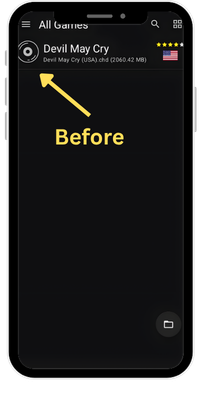
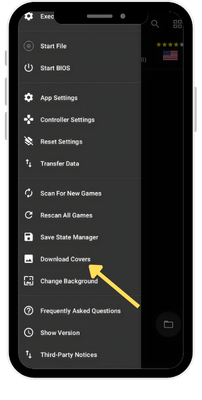
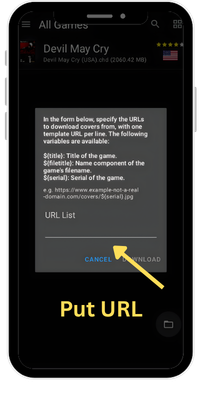
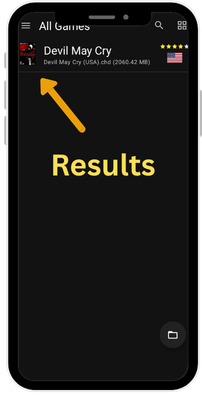
How to Add Cover Art in AetherSX2 – Step-by-Step
In AetherSX2, long-press any game in your library, tap “Choose Cover Image”, then select the downloaded image from your device storage.
Here is the full process:
- Download your cover image (JPG or PNG) using one of the methods above.
- Save it somewhere accessible on your Android device — your Downloads folder or a dedicated /PS2 Covers/ folder works well.
- Open AetherSX2 and navigate to your Game Library.
- Long-press the game you want to assign a cover to.
- From the context menu, tap “Choose Cover Image”.
- Browse to the saved image file and select it.
- The cover will immediately appear in your game library.
Repeat for each game, or use the file-based method below for bulk assignments.
Fix “AetherSX2 Cover Art Not Working”
Cover art failing to appear is one of the most common AetherSX2 complaints. Here are every root cause and its fix:
Incorrect File Naming
If you placed the image manually in the covers folder, the filename must match the game title exactly as AetherSX2 lists it, or match the game’s serial number with the correct hyphen format (e.g., SLUS-20062, not SLUS20062). Even a single character mismatch will cause the cover to not load.
wrong File Format
AetherSX2 only reads JPG and PNG. If your cover is a WebP, BMP, or HEIC file, it will be silently ignored. Open the file in any image editor, export it as JPG or PNG, and re-assign it.
Storage Permission Issues
On Android 11 and above, scoped storage restrictions can prevent AetherSX2 from reading files outside its designated data folder. Ensure you granted AetherSX2 full folder access permissions during setup, and that your covers are stored in the AetherSX2 data directory rather than an arbitrary location on your SD card.
Cache Issues
AetherSX2 caches cover thumbnails. If you replaced a cover file but the old (or blank) thumbnail persists, force-close the app, then clear its cache via Android Settings → Apps → AetherSX2 → Storage → Clear Cache. Reopen the app and the updated cover should appear.
Broken or Redirecting Cover URL
If you fed a URL into a downloader tool and the cover failed to appear, confirm the URL returns a raw image (not an HTML page). GitHub raw URLs must start with raw.githubusercontent.com, not github.com.
Corrupted ISO Metadata
A downloaded cover that is under 10 KB is almost certainly a placeholder or corrupt file. Verify the image opens correctly in a file viewer before assigning it.