
AetherSX2 Best Settings (2026)
Are you struggling to get a lag free ps2 gaming experience while using aethersx2 apk and want to know the best setting to ensure 60 fps, even on low end devices? You are at the right destination. Here we will share an experiment based tweaking guide for famous games like God of War, Need for Speed (NFS) Most Wanted, Dragon Quest 8, Gran Turismo 4, Resident Evil 4, or Silent Hill 2 to achieve performances with no audio stutter, black screen, or lag on android. This setting will equally beneficial for aethersx2 pc, iOS and Aethersx2 mac users as well. Stay intact till the end. Before moving to the settings options please check the availability of latest version of emulator and valid PS2 BIOS.
General AetherSX2 Settings for Best Performance
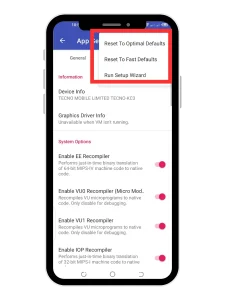
Ok lets start with general settings if you have already configured aethersx2 then please Enable default setting so we can move step by step. Just navigate to the menu to the left upper corner and reset by default settings. Turn on the status monitor so you can check the effect of changes
Now move ahead and download any ps2 game to play and start tweaking and feel the difference.
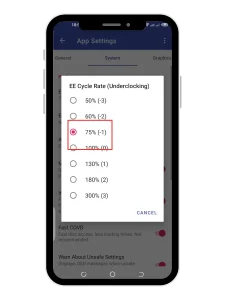
Best EE cycle Rates settings
One of the most important settings to achieve 60 Fps is selection of EE cycles that control how many cycles the emulator simulates for the Emotion Engine. I recommend to adopt this -1 (75%) and “moderate” underclock cycle skipping, on low end devices as lower the EE cycle rate, better will be the performance. Gradually increase the rate, If you feel instability or glitches.
Multithreading settings
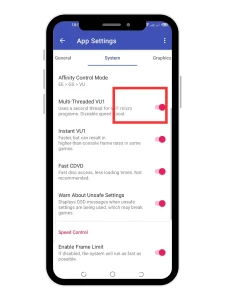
Enabling multithreads boost performance, especially on devices with powerful processors. This allows the emulator to split tasks across multiple CPU threads instead of one. You can achieve higher frame rates and smoother gameplay in demanding titles.
Graphics Rendering Settings
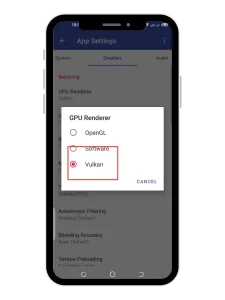
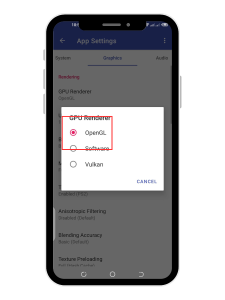
Next a very important factor that may affect performance is the selection among Vulkan and OpenGL
Vulkan rendering
Vulkan is best for modern devices with multi-core CPUs (quad‑core or more) and up-to-date GPU Adreno 800 series, Mali G-series or recent Exynos/ Dimensity/Qualcomm chipsets. It delivers higher performance, improved efficiency, and more future-ready graphics capabilities. Users of Samsung Galaxy Series, Google Pixel Series, OnePlus Series, Xiaomi / Redmi / POCO e.tc can use this rendering option.
OpenGl Rendering
If you are an older or mid-range device user with limited GPU capabilities or incomplete Vulkan driver support, OpenGL (or OpenGL ES) is a reliable rendering option. It offers broader compatibility and stability across a wide range of Android devices, particularly those with older Snapdragon, Mali, or PowerVR GPUs. Users of older or budget devices from brands like Samsung, Xiaomi, Realme, Motorola, and others may find better performance or fewer graphical issues when using this
Resolution scalability Settings
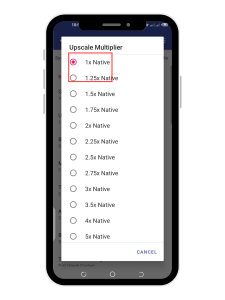
Well, every user loves to play classic with modern standards and fortunately it’s possible with these aethersx2 best settings tweaks but i recommend to start with low resolution 1x native. This improves performances on devices with minimal hardware capabilities.
Enabling Widescreen Patch
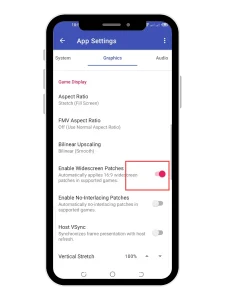
Most of the classic PS2 are made in 4:3 aspect ratio, which was standard for TVs at the time but Aethersx2 allows Forces games to display in 16:9 widescreen by enabling widescreen in graphics settings.
Aethersx2 audio settings
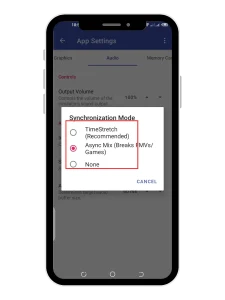
PS2 sound was high-quality for the early 2000s, though not up to modern lossless or surround standards. I used the Async mix option as best aethersx2 settings in the audio section that helped me to prevent audio stuttering when the game is lagging or the frame rate drops.
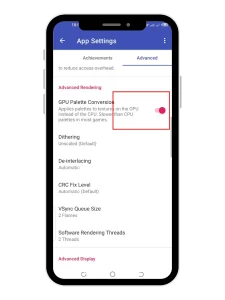
Enable GPU palette conversion (Advance setting)
This option lets the color to the graphic chip instead of the main CPU which can make some games run faster and helps your device work more efficiently. Sometimes it can make colors or textures look weird or broken. If such happens, reverse this aethersx2 setting.
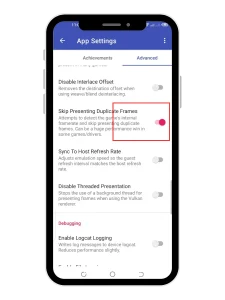
Skip presenting duplicate frames
If the game shows the same frame twice in a row, enabling this option skips drawing it again. This makes gameplay smoother, especially on weaker devices.
Other Aethersx2 Performance Enhancement options
Although these are these are the proven settings to achieve best performances still, i am sharing some other tweaks with their impacts.
|
Settings |
Impact |
|---|---|
|
Keep the Fast Boot “ON” |
Skips PS2 startup animation → faster game load times |
|
Enable Patch Codes=On |
Enables cheats/fixes via patch files (.pnach) |
|
Expand To Cutout Area = On |
Uses entire screen space (useful on notched phones). |
|
Emulation Screen Orientation = Landscape |
Forces landscape mode (best for gameplay). |
|
Other UI options |
Just visual/stat tracking — toggle as you like. |
Aethersx2 Best settings in “System”
|
Settings |
Impact |
|---|---|
|
EE Cycle Rate = 75% (-1) |
Underclocks CPU → reduces lag in some games but may lower performance in others. |
|
EE Cycle Skip = Normal (0) |
Sets how many cycles to skip. Normal is safest |
|
Affinity Control Mode = EE > GS > VU |
Prioritizes CPU threads for better multitasking |
|
Instant VU1 = On |
Speeds up VU1 instructions → better performance. |
|
Fast CDVD = On |
Speeds up game loading and data access. |
|
Enable Frame Limit = On |
Caps FPS at game’s original rate to avoid speed-up. |
|
Normal Speed = 100% |
Standard gameplay speed. |
|
Turbo Speed = 200% |
Doubles speed for fast-forwarding. |
|
Slow Motion Speed = 50% |
Halves speed for slow-motion gameplay. |
Visual Graphics settings in aethersx2
|
Setiings |
Impact |
|---|---|
|
Texture Filtering = Bilinear (PS2) |
Matches original PS2 look. |
|
Mipmapping = Full (PS2 Mips) |
Improves texture detail at distance. |
|
Trilinear Filtering = Enabled (PS2) |
Smooths textures between mipmap levels. |
|
Anisotropic Filtering = Disabled |
Higher settings improve clarity at angles, but cost performance. |
|
Dithering = Unscaled |
Preserves PS2-style shading effects. |
|
Interlacing = Automatic |
Helps reduce screen flickering in interlaced games. |
|
Aspect Ratio = Stretch / 4:3 / 16:9 |
Choose based on personal preference or screen shape. |
|
FMV Switch Aspect Ratio = Off |
Keeps aspect ratio consistent in cutscenes. |
|
Enable Widescreen Patches = On/Off |
Forces 16:9 in 4:3 games with special patches. |
|
Host VSync = Off |
Reduces input lag; turn on if you get screen tearing. |
|
Integer Scaling = Off |
It gives sharp pixels, but can break scaling. |
|
Bilinear Upscaling = Off |
Softens upscaled pixels slightly. |
|
Zoom = 100% |
Default screen size. Adjust if needed. |
|
Vertical Stretch = 100% |
Default vertical scaling. Adjust if image is squished. |
|
TV Shader = None |
Adds CRT-style visual effects (for nostalgia). |
|
FXAA Shader = Off |
Anti-aliasing for smoother edges (minor GPU load). |
|
Shade Boost = Off |
Adjusts color/brightness — off is accurate. |
|
VSync Queue Size = 3 Frames |
Controls input lag and frame pacing. Lower = less lag. |
|
Blending Accuracy = Minimum |
Fastest, but may cause visual issues in some games (like MGS3). |
|
CRC Fix Level = Aggressive |
Removes unnecessary effects for speed. |
|
Preload Textures = Full (Hash Cache) |
Improves performance by loading textures in advance. |
|
GPU Palette Conversion = On |
Faster color processing — may cause glitches in some games. |
|
Disable Hardware Readbacks = On |
Speeds up emulation by skipping some GPU operations. |
|
Skip Presenting Duplicate Frames = On |
Avoids redrawing same frames → smoother performance. |
|
Threaded Presentation = On |
Uses multiple threads for smoother frame output. |
|
Software Rendering Threads = 5 |
Boosts performance in software mode (useful for glitchy games). |
More Advanced settings
|
settings |
Impact |
|---|---|
|
Enable EE Recompiler = On |
Speeds up CPU emulation. |
|
Enable VU0 Recompiler (Micro Mode) = On |
Faster vector calculations. |
|
Enable VU1 Recompiler = On |
Improves VU1 performance. |
|
Enable IOP Recompiler = On |
Faster emulation of PS2’s input/output processor. |
|
EE FPU Correct Add/Sub = On |
Improves accuracy in floating point math. |
|
mVU Flag Optimization = On |
Speeds up vector unit emulation. |
|
Idle Loop Optimization = On |
Skips useless loops → better speed. |
|
INTC Spin Detection = On |
Optimizes timing and improves performance. |
|
Enable Fastmem = On |
Uses faster memory access → better performance. |
|
EE FPU Round Mode = Towards Nearest |
Best accuracy. |
|
EE FPU Clamp Mode = None |
Fastest, may cause inaccuracies. |
|
VU Round Mode = Towards Nearest |
Best balance of speed/accuracy. |
|
VU Clamp Mode = None |
Fast, but may glitch in rare cases. |
|
Debug GPU Device = Off |
For developers — leave off. |
|
Disable Framebuffer Fetch = Off |
Some effects may break if turned on. |
|
Disable Dual-Source Blending = Off |
Leave off unless a game has specific visual issues. |
|
Override Texture Barriers = Force Disabled |
Helps fix glitches in rare cases. |
|
Override Geometry Shaders = Automatic |
Let the emulator decide — safest choice. |
Conclusion: AetherSX2 Best Settings Guide
Remember there is no universal settings for all devices and games. Use this guide as starting, apply one setting and look for the performance if it does not work go ahead and use other options. Whether you’re playing God of War, Need for Speed: Most Wanted, or Silent Hill 2, these aethersx2 best settings will help you get closer to that 60 FPS sweet spot.